

What You’ll Learn
- Understanding how post dripping works
- Creating drip sessions for posts and pages
- Canceling active drip sessions
- Using Post Dripper with Boilerplate content
- Posts
- Pages
- Boilerplate Posts (only if the Boilerplate Extension is installed and activated)
- Boilerplate Pages (only if the Boilerplate Extension is installed and activated)
How it Works
Post Dripper Extension allows you to set how fast you want to publish content on the selected number of sites during 1 session. The Extension will post to all selected child sites. Once the Post/Page is published on all selected sites, the drip session ends. It will never publish the same content to one child site multiple times.Example 1
Publish this post to 1 site every 1 day (20 child sites selected)- Day 1: the article gets published on the first child site
- Day 2: the article gets published on the second child site
- Day 3: the article gets published on the third child site
- …
- Day 20: the article gets published on the 20th child site
Example 2
Publish this post to 3 sites every 2 days (20 child sites selected)- Day 1: the article gets published on the first 3 child sites
- Day 2: nothing gets published
- Day 3: the article gets published on the second 3 child sites
- Day 4: nothing gets published
- Day 5: the article gets published on the third 3 child sites
- Day 6: nothing gets published
- …
- Day 13: the article gets published on the last 2 child sites
Example 3
Publish this post to 5 sites every 1 week (20 child sites selected)- Day 1: the article gets published on the first 5 child sites
- Day 2: nothing gets published
- Day 3: nothing gets published
- Day 4: nothing gets published
- Day 5: nothing gets published
- Day 6: nothing gets published
- Day 7: nothing gets published
- Day 8: the article gets published on the second 5 child sites
- Day 9: nothing gets published
- Day 10: nothing gets published
- Day 11: nothing gets published
- Day 12: nothing gets published
- Day 13: nothing gets published
- Day 14: nothing gets published
- Day 15: the article gets published on the third 5 child sites
- …
- Day 22: the article gets published on the last 5 child sites
Important Notes
If you want to make sure that WP Cron jobs are regularly triggered on your MainWP Dashboard, you can Authorize the Uptime Robot service and add your dashboard site as a monitor. The Uptime Robot will ping your dashboard site regularly and make sure that all scheduled events are occurring.Cancel a Drip Session
Cancel Post Drip Session
Login in to your MainWP Dashboard
Go to the MainWP > Add-ons > Post Dripper page
Locate the Post Drips section
Locate the session that you want to cancel
Click the Cancel Drip action

Cancel Page Drip Session
Login in to your MainWP Dashboard
Go to the MainWP > Add-ons > Post Dripper page
Locate the Page Drips section
Locate the session that you want to cancel
Click the Cancel Drip action
Cancel Boilerplate Post Drip Session
Login in to your MainWP Dashboard
Go to the MainWP > Add-ons > Post Dripper page
Locate the Boilerplate Post Dripper section
Locate the session that you want to cancel
Click the Cancel Drip action
Cancel Boilerplate Page Drip Session
Login in to your MainWP Dashboard
Go to the MainWP > Add-ons > Post Dripper page
Locate the Boilerplate Page Dripper section
Locate the session that you want to cancel
Click the Cancel Drip action
Create a Drip Session
Drip Posts
Login in to your MainWP Dashboard
Go to the MainWP > Posts > Add New page
Set your post content and meta fields
Locate the Post Dripper section
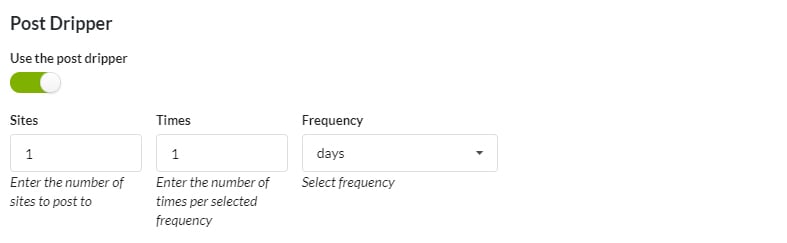
- Select the Use Post Dripper option
- Set dripper preferences
Select your child sites
Click the Publish button
Drip Pages
Login in to your MainWP Dashboard
Go to the MainWP > Pages > Add New page
Set your page content and meta fields
Locate the Post Dripper section
- Select the Use Post Dripper option
- Set dripper preferences
Select your child sites
Click the Publish button
Drip Boilerplate Posts
Login in to your MainWP Dashboard
Go to the MainWP > Posts > Add Boilerplate page
Set your boilerplate post content and meta fields
Locate the Post Dripper section
- Select the Use Post Dripper option
- Set dripper preferences
Select your child sites
Click the Publish button
Drip Boilerplate Pages
Login in to your MainWP Dashboard
Go to the MainWP > Pages > Add Boilerplate page
Set your boilerplate page content and meta fields
Locate the Post Dripper section
- Select the Use Post Dripper option
- Set dripper preferences
Select your child sites
Click the Publish button
Manage Drafts
The MainWP Post Plus extension is designed to provide you a quick way to save your progress as a draft and, when needed to continue editing and eventually publish your work. It will enable you to:- Save Drafts
- Publish Drafts
- Edit Drafts
- Delete Drafts
Related Resources
- Posts/Pages Add-ons - Browse all content tools
- Boilerplate Extension - Create reusable content
- Manage Posts - Post management guide